For mit engaging infrastructure and model engineering teams
MIT Engaging GPU not visible: check the Slurm allocation first.
Compare the scheduler request, assigned compute node and first worker exception. Distinguish a missing GPU request from a device or runtime fault.
Free 30-day Team evaluation. No card or automatic subscription. Work email verification required.
Replay a resolved MIT Engaging workflow incident
Upload your log file. Review the selected evidence and masking, then run diagnosis. Keep the original log for any follow-up questions.
Before uploading, review cloud data handling and local options.
Upload your log file. Large files are processed in your browser. Only selected evidence is submitted when you run diagnosis.
Try Denpex for 30 days. FREE.
No credit card. No automatic subscription. See whether Denpex helps with an incident you already understand.
Start your free 30-day Team evaluation
Up to 50 diagnoses a day for 30 days. Verify your work email to activate an eligible company evaluation, then replay a resolved incident and compare the evidence and next steps with your team's confirmed cause.
What a useful evaluation should establish
Compare the first failure, quoted evidence and unresolved questions with an incident your team has already resolved. Begin with this question: Was this attempt allocated a GPU? Only attribute a process, rank, device or recovery state when the submitted evidence establishes it.
Was this attempt allocated a GPU?
Evidence to compare: The Slurm request and effective resources for the job step.
A default CPU allocation is not a broken GPU. Verify the assigned resources before inspecting driver or application settings.
Where did the process run?
Evidence to compare: Execution hostname, job step and environment launch output.
A shell outside the intended compute step can show different devices. Preserve the actual execution context rather than relying on a login-session check.
Did startup fail after allocation?
Evidence to compare: The first import, initialization or CUDA exception and runtime versions.
Once allocation is established, investigate the first process error. Missing environment or device mapping remains a follow-up question, not proof of hardware failure.
Use Denpex alongside your existing telemetry tools to investigate submitted incident evidence. With monitoring configured on a supported plan, detected failures can trigger alerts and an automatic diagnosis from the captured evidence.
Inside Denpex
See the evidence, not just the claim
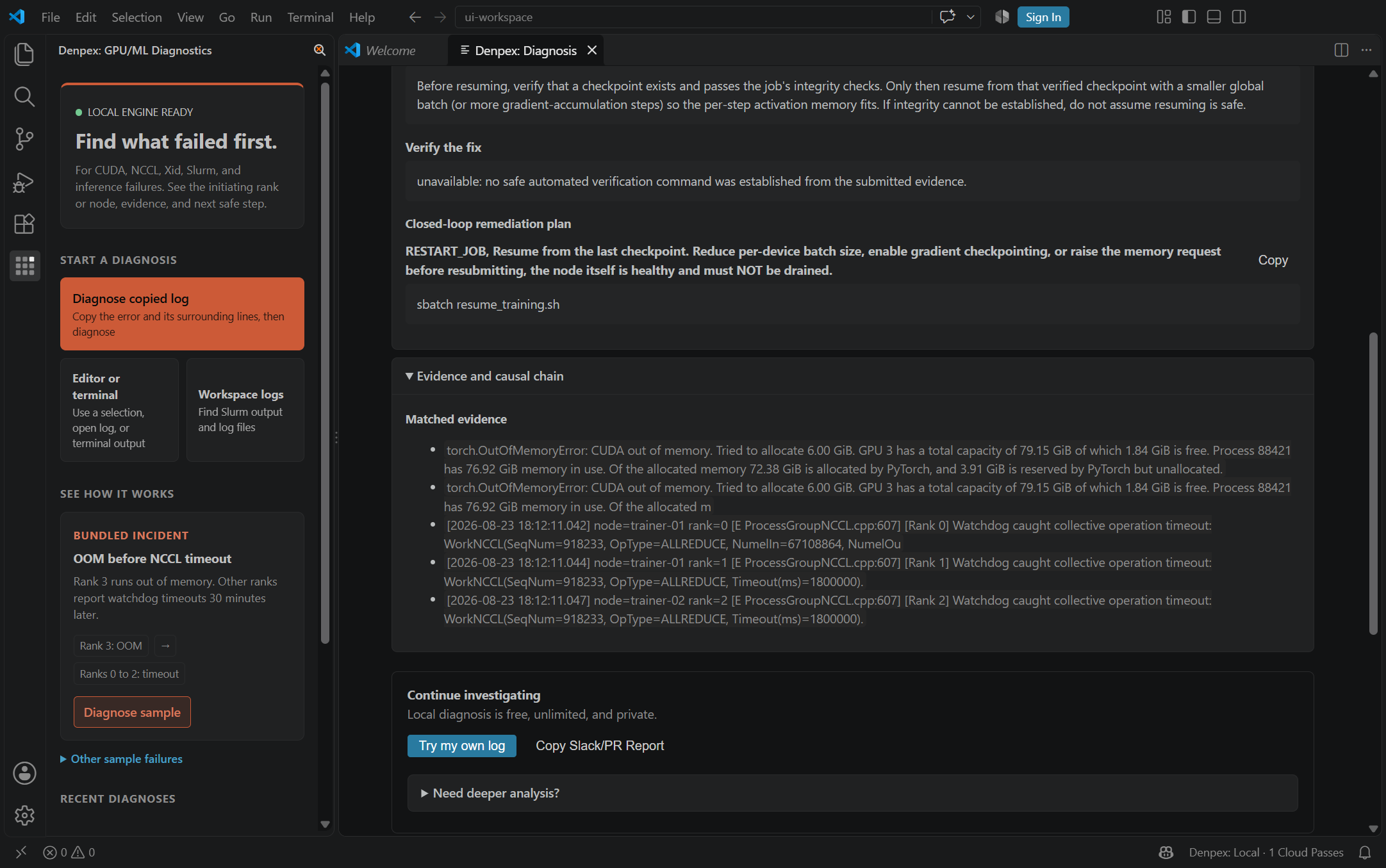
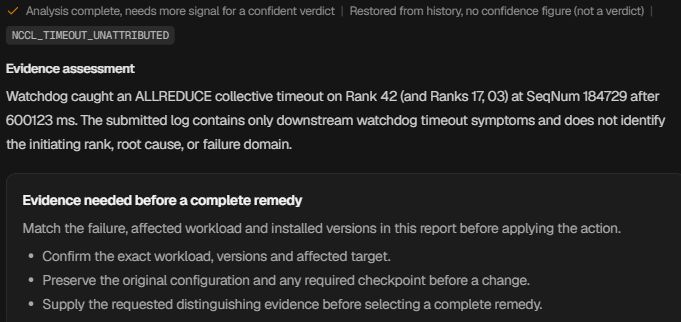
Follow the causal chain, inspect the quoted evidence and prepare the next handoff. These actual product captures use founder-account examples and the VS Code extension, with the source identified under each image. Open a capture to inspect it at full size.
Follow the failure through the cascade
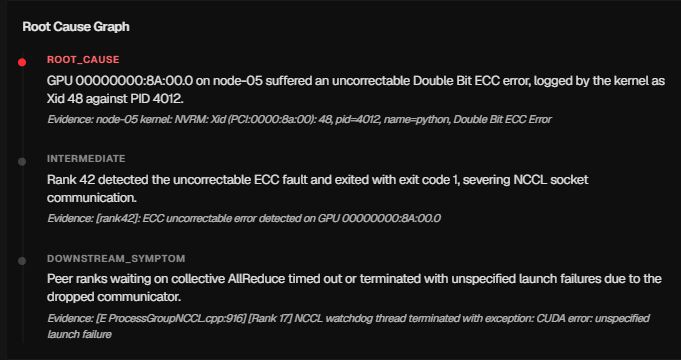
Prepare the hardware escalation

Ask for the evidence that is missing
Keep the investigation in the editor